Import Remittance Responses Manually
|
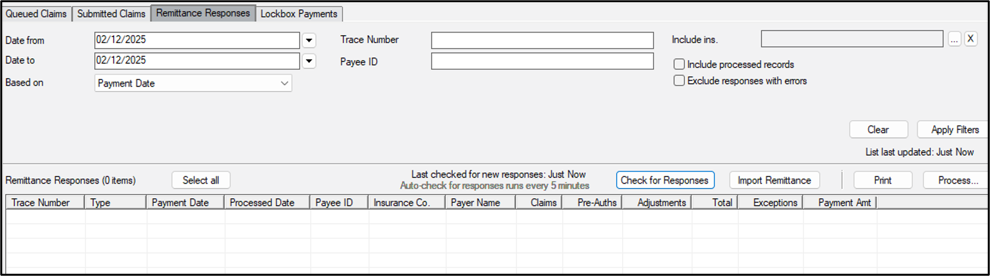
Claims that have been submitted to insurance via a supported clearinghouse must be processed by the insurance company. After your institution has submitted a claim to a supported clearinghouse and the claim has been processed by the insurance company, you can manually check for remittance responses and import from the clearinghouse. Note: axiUm will reset the interval in the Last checked for new responses indicator when you import remittance responses manually. Tip: A remittance file may contain multiple payments. When you load a remittance responses, axiUm stores the file as viewable payment(s) with a report that displays its contents, and the information is added to the EOB* database tables. To import remittance responses manually:
Note: Claims Service version 2.1.0 is required to see this button. For institutions with a lower version of Claims Service or axiUm installed, the Load Responses button displays. All available responses are imported and the insurance payments are listed. Note: The Check for Responses button loads all responses from the clearinghouse, including all rejections and remittances. Rejections do not include any insurance payments and cannot display in the Remittance Responses tab. When ready, you can proceed to review and auto-process the payments to allocate all successfully imported insurance payments. |